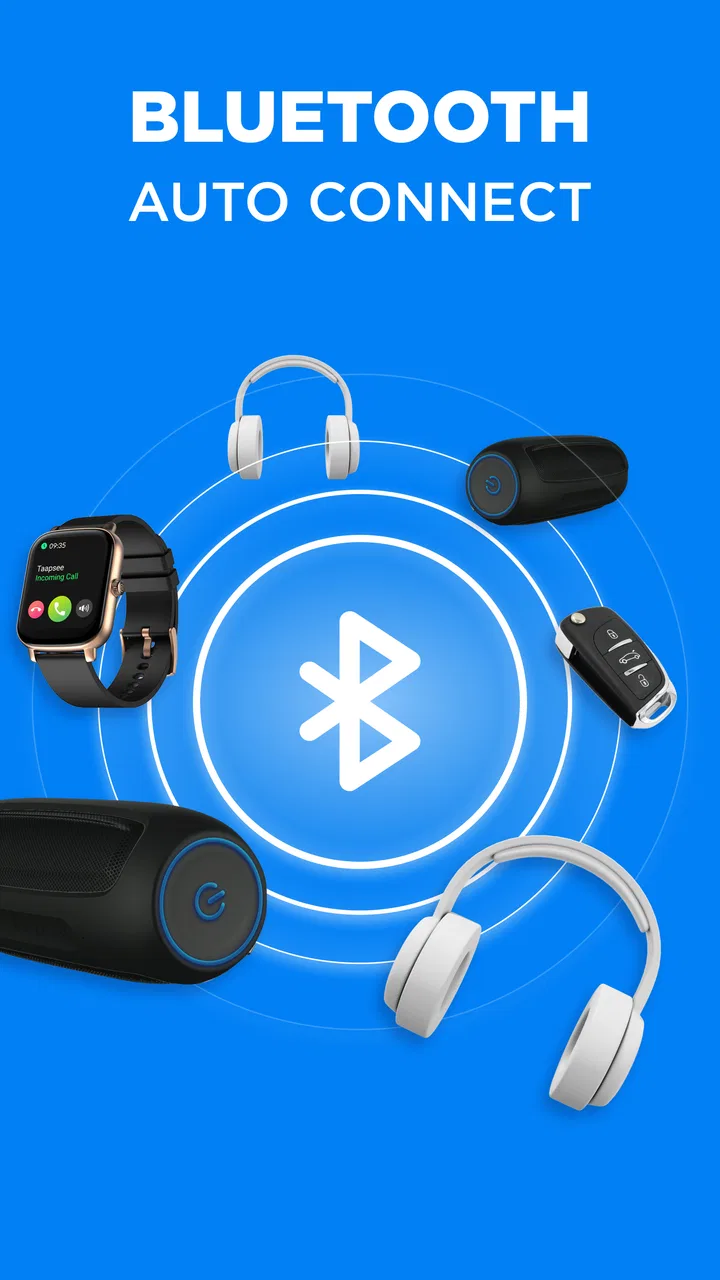
Bluetooth - Auto Connect
- 4.2
- Rating
- 1.00M
- Installs
- Free
- Price

 Analysis by App-foxy
Bluetooth problems are rarely dramatic, but they are remarkably good at wasting time. I have had headphones sitting beside my phone while audio continued through the speaker, a car system that needed manual attention before a short trip, and accessories that seemed to remember yesterday’s connection but not today’s. Bluetooth - Auto Connect is aimed at that repeated annoyance: making Bluetooth devices easier to reconnect without turning every small listening session into a settings exercise.
That focus makes it different from a music app or a general device manager. It is a free Tools app from Devolutionapps, built around the practical side of Bluetooth rather than entertainment. The store summary describes it as a useful mobile Bluetooth tool for Bluetooth devices, while the short description is simply “Bluetooth.” That wording is brief, but the real appeal is easy to understand once you use the app for recurring connections: it tries to reduce the number of times you have to open Android’s Bluetooth menu and search for the same accessory.
Making repeated Bluetooth connections less tedious
I focus here on the everyday irritation behind Bluetooth - Auto Connect: a device that is already paired but still takes too much effort to reconnect. I’ll look at where a dedicated helper can make that routine smoother, then consider the limits that matter when a connection depends on the accessory as much as the phone.
You May Also Like

 Blood Strike: 2.5 Anniversary
Blood Strike’s Loadouts Turn Every Drop Into a Tactical Gamble
A close look at Blood Strike’s custom loadouts: how fast access to signature weapons reshapes its battle royale rhythm, rewards preparation, and narrows the gap between fights.

 Pandora - Music & Podcasts
Pandora’s Music Is Easy to Start, but Harder to Recover
Pandora’s strength is its low-effort path from a seed to a station. Its weak spot is how much confidence it asks you to place in connection, setup, and quiet recovery.

 8 Ball Pool
 Is Built on Rivalries, Rematches, and Routine
A close look at the rivalries, rematches, shared routines, and unanswered safety questions that turn a quick pool match into a persistent mobile community.

 Samsung Music
’s Quiet Strength Is Playing What You Already Own
Its reach comes less from spectacle than from dependable access to a personal library. That simplicity is both the app’s strongest retention engine and its ceiling.

 AccuWeather: Weather Radar
AccuWeather Review: A Quick, Clear Forecast for Everyday Decisions
For everyday plans, the best forecast is the one you can understand quickly. AccuWeather makes rain timing, radar, and local conditions easy to act on, with a few trade-offs.

 Hill Climb Racing
Why Hill Climb Racing Still Turns Crashes Into One More Run
A tiny car, a bumpy hill and one more upgrade: Hill Climb Racing keeps resurfacing because its simple chaos makes every near-miss feel personal.
More From Our News Desk



The problem it is trying to solve
The biggest benefit here is not discovering Bluetooth for the first time. Android already handles basic pairing well enough for many people. The irritation starts after pairing, when a device is known but does not connect at the moment you need it. This happens often with earbuds, car stereos, speakers, keyboards, watches, and other accessories that compete for attention or wake up at different times.
My practical test for an app like this is simple: does it save enough taps and waiting to justify having another utility installed? Bluetooth - Auto Connect makes the most sense when the same device is used repeatedly. If you connect a headset once a month, the benefit will be small. If you switch between a car, earbuds, and a portable speaker throughout the week, an easier connection routine becomes much more valuable.
I also like that the app has a narrow purpose. It does not ask me to replace the phone’s entire Bluetooth system. Instead, it gives the connection process a more direct place to start. That matters for people who are comfortable with their accessories but tired of navigating through menus whenever one of them fails to reconnect automatically.
What the first setup feels like
The first step is still to pair the accessory through the phone in the normal way. An app like this cannot make an unknown device magically available; the phone and accessory must already recognize each other. Once that relationship exists, the useful part is having a more convenient route back to it when the device is nearby and ready.
I recommend setting it up with one frequently used accessory first rather than trying to organize every Bluetooth product in the house immediately. Earbuds are a good trial because they are commonly removed, stored, and reused several times a day. A car stereo is another sensible choice, especially if the phone often fails to reconnect after a short stop. Starting small makes it easier to tell whether the app is genuinely saving time in your routine.
The current version is 93.0, and the app supports Android 7.0 and later. That broad compatibility is useful if you keep an older phone or use a budget device that does not receive the newest Android releases. At the same time, Bluetooth behavior can vary considerably between phone manufacturers and accessory brands, so I would judge the app by how it behaves with your own combination rather than assuming every device will respond identically.
The app is rated for Everyone, which fits its straightforward purpose. It is also free to install, although in-app purchases range from $5.99 to $59.99 per item. That makes it sensible to try the basic experience before spending anything. I would not pay simply because an accessory is occasionally slow to connect; the value depends on whether the app becomes part of a repeated workflow.
Where it helps during an ordinary day
Consider a realistic morning. I leave home wearing wireless earbuds, put them away before driving, and later get back in the car. The phone may still show the earbuds as recently used, while the car system is waiting for its own connection. Instead of repeatedly opening Bluetooth settings, checking whether the car is visible, and tapping the same entry, an auto-connect utility can provide a more direct attempt at restoring the connection.
That does not mean every connection will happen instantly. The accessory still needs power, proximity, and a usable Bluetooth state. The important difference is that the app can reduce the manual work around a connection that should already be familiar to the phone. In my view, this is where the time saving is real: not in replacing pairing, but in shortening the recovery process when an established connection is missed.
Another useful case is a shared home environment with several devices. A portable speaker may be used in the kitchen, headphones at a desk, and a keyboard near a tablet or phone. When multiple accessories are nearby, selecting the correct one from the system list can become repetitive. A purpose-built Bluetooth helper is more appealing here than a generic settings shortcut because it keeps the focus on getting to the intended device.
For people who use Bluetooth audio while commuting, the app can also be useful as a small routine check. Before starting a podcast or call, I can make sure the intended accessory is the one being targeted instead of discovering after playback begins that the phone is using its own speaker. That is a modest improvement, but it prevents the embarrassing and annoying moment of audio starting in the wrong place.
Small workflow improvements that matter
One non-obvious advantage of an auto-connect tool is that it changes how I respond to a failed connection. Without a dedicated utility, I tend to keep tapping the same Bluetooth entry or restart unrelated settings. With a focused tool, I am more likely to follow a consistent sequence: wake the accessory, bring it close, use the app to attempt the connection, and only then investigate pairing or device settings if it still fails.
That sequence is useful because it separates a temporary connection delay from a genuine pairing problem. If the accessory is powered off, out of range, already connected elsewhere, or not accepting a connection, no app can remove the underlying cause. The benefit is knowing sooner whether another attempt is worthwhile, rather than spending several minutes moving through menus without a clear plan.
A second practical insight is to treat the app as a shortcut for a small number of dependable devices, not as a solution for every Bluetooth product you own. If I add too many accessories to any connection routine, the convenience can disappear because I still have to decide which device should win. A focused setup is usually better: choose the accessories that create the most repeated friction and leave occasional devices to Android’s standard controls.
A third trade-off involves automatic behavior. Automation sounds ideal, but Bluetooth accessories do not all wake at the same speed or follow the same connection rules. An app may make the attempt easier while still needing me to wake the earbuds, turn on the speaker, or disconnect another device. I see that as an important distinction: the app can streamline the process, but it cannot override the physical and software limits of the accessory.
How it compares with Android’s built-in controls
Android’s Bluetooth panel remains the right tool for first-time pairing, removing an old accessory, checking the complete list of remembered devices, and handling unusual connection problems. I would not uninstall or ignore those controls. They are more comprehensive, and they are the place I would go when an accessory needs to be forgotten and paired again.
Bluetooth - Auto Connect is more attractive for the narrower task of returning to a known device. That distinction is important because a dedicated utility is not automatically better than the system menu. It wins when the system menu feels too slow or buried for a routine action. It loses when I need detailed device management, troubleshooting, or a clear view of every Bluetooth relationship stored by the phone.
It also sits somewhere between a manual shortcut and a full automation system. A more advanced automation app might let experienced users build elaborate rules around time, location, or other triggers. That can be powerful, but it also takes more setup and creates more ways for a routine to break. Bluetooth - Auto Connect is easier to justify for someone who wants fewer connection taps without designing a complicated automation project.
Reliability, waiting, and the points of friction
The word “auto” should be interpreted realistically. Bluetooth connections depend on more than the app: the accessory must be charged, awake, close enough, and available to the phone. Some devices also reconnect to the last phone or tablet they used, which can prevent a new connection even when everything appears normal. When that happens, the correct fix may be disconnecting the other device or restarting Bluetooth, not pressing the connect control again.
This is the main limitation I would explain to a friend. The app can remove interface friction, but it cannot guarantee a connection when the accessory itself is unavailable. If you expect one tap to solve every pairing failure, you may find the experience disappointing. If you see it as a faster way to make a sensible connection attempt, its role is clearer and more useful.
There is also the ordinary cost of adding another app to a simple phone function. Even a focused tool takes space, needs to be learned, and becomes another item to remember when troubleshooting. For someone who owns one pair of headphones and rarely has problems, Android’s built-in Bluetooth controls are probably enough. The app is better suited to people who repeatedly move between accessories or regularly lose time to reconnection issues.
I would also avoid judging it by a single failed attempt. Bluetooth behavior can be inconsistent, especially after a phone update, an accessory firmware change, or use with several nearby devices. A fair test is to use it across the situations that normally cause trouble: leaving and returning to the car, putting earbuds away and taking them out again, and switching from one speaker to another. That reveals whether it reduces friction in your real routine rather than merely working once on a quiet desk.
Who should use it and who should skip it
I think this app is most suitable for people who use several Bluetooth accessories every day and want a quicker way to reconnect them. It is also a reasonable choice for anyone using an older Android phone that still meets the Android 7.0 requirement and has a Bluetooth workflow that feels buried in the system interface. Drivers, frequent earbud users, and people moving between home audio devices are the clearest audience.
I would skip it if your phone already reconnects reliably, you use only one accessory, or you need advanced device administration rather than a connection helper. I would also look elsewhere if your main problem is poor audio quality, battery life, microphone performance, or an accessory that disconnects because of hardware faults. A Bluetooth utility cannot repair those issues.
The app has built a sizable audience, with over one million installs, around eleven thousand ratings, and a 4.2 average. Those figures suggest that the basic idea is useful to many Android users, but they should not replace a personal trial. Bluetooth compatibility is unusually dependent on the exact phone and accessory combination, so the most meaningful question is whether it saves time for the devices you actually carry.
My verdict after using it as a daily helper
The real strength of Bluetooth - Auto Connect is the time it can save in a repeated, annoying task. It does not transform Bluetooth into something foolproof, and it should not be treated as a replacement for Android’s own pairing and troubleshooting controls. What it offers is a more focused path back to devices that are already known but do not always reconnect smoothly.
I would recommend trying Bluetooth - Auto Connect if you regularly switch between earbuds, a car system, speakers, or other familiar accessories. Start with the one device that causes the most wasted time, keep expectations realistic, and compare the number of manual steps before and after installing it. If your Bluetooth use is occasional and trouble-free, the extra utility may not earn its place on your phone.
For the right user, the value is not a flashy feature or a promise that every connection will succeed. It is the quieter benefit of removing a recurring interruption from the day. When the app turns a frustrating settings detour into a quick, repeatable connection attempt, that is enough to make it worthwhile. When the underlying problem is a dead accessory, a competing connection, or a damaged device, the usual Android controls and basic hardware checks remain the better answer.
FAQs for Bluetooth - Auto Connect
01What is Bluetooth - Auto Connect and what does it do?
Bluetooth - Auto Connect is designed to simplify connections between your Android device and paired Bluetooth accessories. After enabling the required settings, it can help reconnect devices such as headphones, speakers, car systems, keyboards, and smartwatches without repeatedly opening the Bluetooth menu. Its usefulness depends on your phone model, Android version, accessory, and the permissions granted during setup.
02Does Bluetooth - Auto Connect work with every Bluetooth device?
The app can work with many commonly paired Bluetooth accessories, but it cannot guarantee compatibility with every device. Bluetooth profiles, manufacturer restrictions, connection distance, battery level, and Android background-management policies may affect performance. Devices that use special companion apps or unusual Bluetooth profiles might still require manual connection. It is best to test the app with your specific headphones, vehicle system, speaker, or wearable before relying on it every day.
03What permissions does Bluetooth - Auto Connect require?
Depending on your Android version and the features you enable, the app may request permissions related to nearby devices, Bluetooth access, notifications, and background activity. Some phones may also ask you to disable battery optimization so automatic reconnection can continue when the screen is off. These permissions are important for its main functions, but you should review each request carefully and grant only what is necessary for the connection features you intend to use.
04Why does automatic Bluetooth reconnection sometimes fail?
Automatic reconnection may fail when the accessory is switched off, out of range, connected to another device, or not fully charged. Android battery-saving tools can also stop the app from running in the background. In testing, reliable results generally require pairing the accessory correctly first, keeping Bluetooth enabled, allowing background activity, and checking the app’s selected-device settings. Restarting Bluetooth or removing and pairing the accessory again can resolve persistent connection problems.
05Is Bluetooth - Auto Connect free, and is it safe to install?
The app may be available as a free download, although some versions can include advertising, optional purchases, or feature limitations. Before installing, check the current Google Play listing for the developer name, update history, ratings, privacy information, and supported Android version. Downloading from the official store is the safest option. Also remember that the app manages Bluetooth connections but cannot improve an accessory’s hardware range, sound quality, or battery life.
Pros
- Automatically reconnects to selected Bluetooth devices.
- Saves time by reducing manual pairing steps.
- Can prioritize frequently used headphones
- speakers
- or car systems.
- Simple interface that is easy to understand.
- Useful for managing connections across multiple paired devices.
Cons
- May not work reliably with every phone or Bluetooth accessory.
- Automatic reconnection can drain battery when used continuously.
- Some features may require accessibility or background permissions.
- Ads or in-app purchases may limit the free experience.
- Connection conflicts can occur when several devices are nearby.

Bluetooth - Auto Connect
Gallery